6 Ultimate Ways to use TeraBox without Ads (Block Ads Methods)
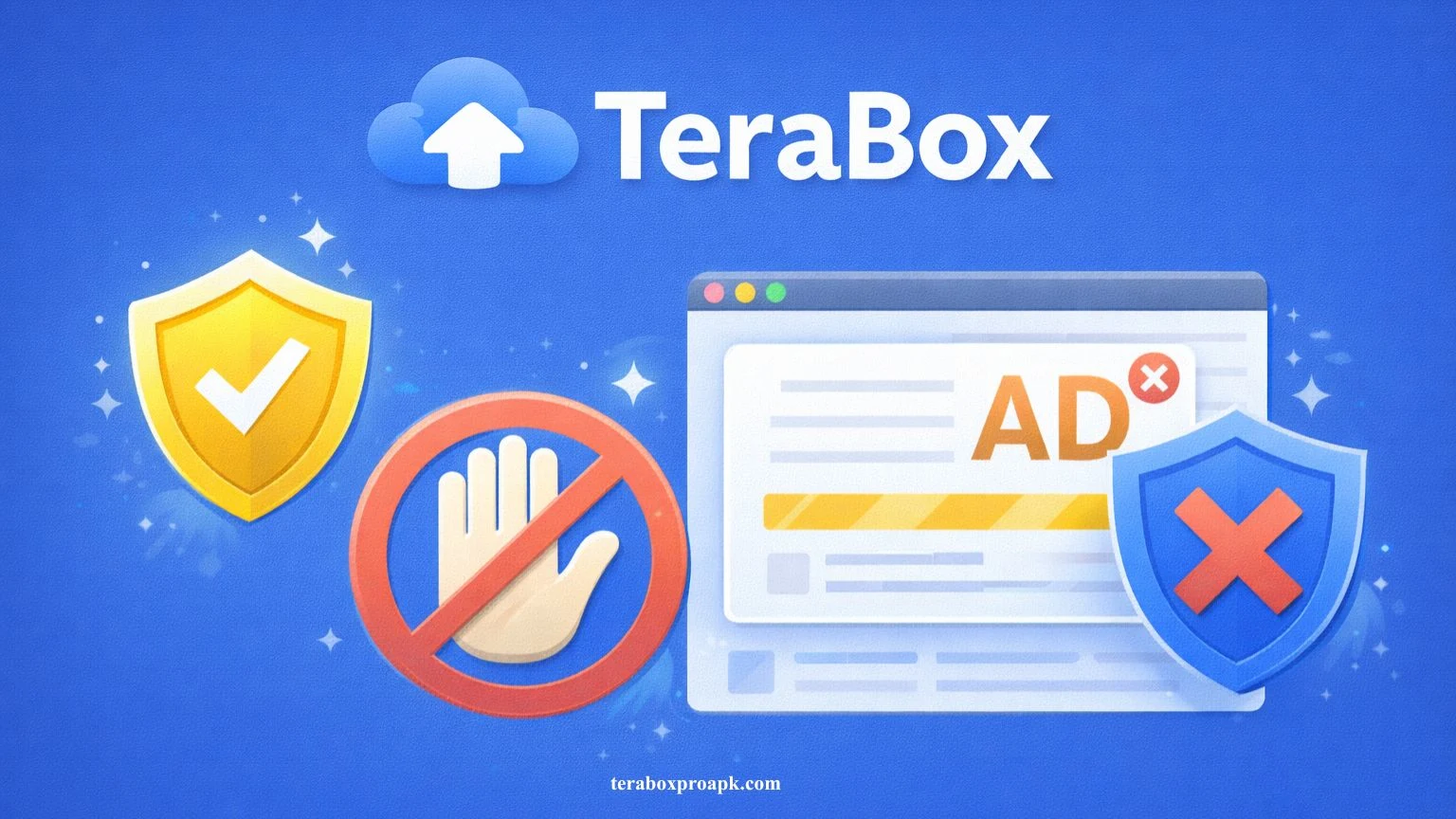
Annoying Ads cause frequent interruptions while using the free TeraBox cloud storage. For instance, if you have to upload 10 files, you may experience ads at least twice or thrice. So, the question arises: how to use TeraBox without Ads?
The guide below will show you the best ways to remove ads from TeraBox and keep working for hours. In this way, you can easily manage and store all your files in TeraBox.
Ways to use TeraBox without Ads
TeraBox is a great cloud storage service that protects users’ data by providing 1TB of free storage. The free version of the app displays intrusive advertisements while you use it.
Frequent pop-up banners, anchors, and third-party apps interrupt uploading files, downloads, and browsing. Besides, ads slow down performance, especially on mobile, and third-party apps track behavior, raising data privacy concerns.
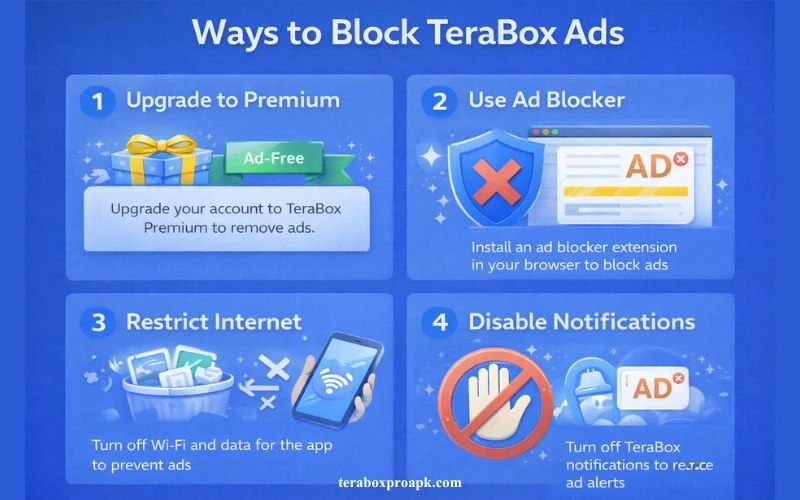
Here are the quick ways I will discuss in the guide; you can choose any of them to enjoy using TeraBox without ads.
Let us discuss each method for following the instructions properly and eliminating annoying ads within a few minutes.
Ad-Blocker Tools
Using ad-blocking tools can be a game-changer for you to get rid of irritating advertisements and have a smoother work experience. You can use them, particularly in the web version or in browsers, to instantly block ad scripts and trackers.
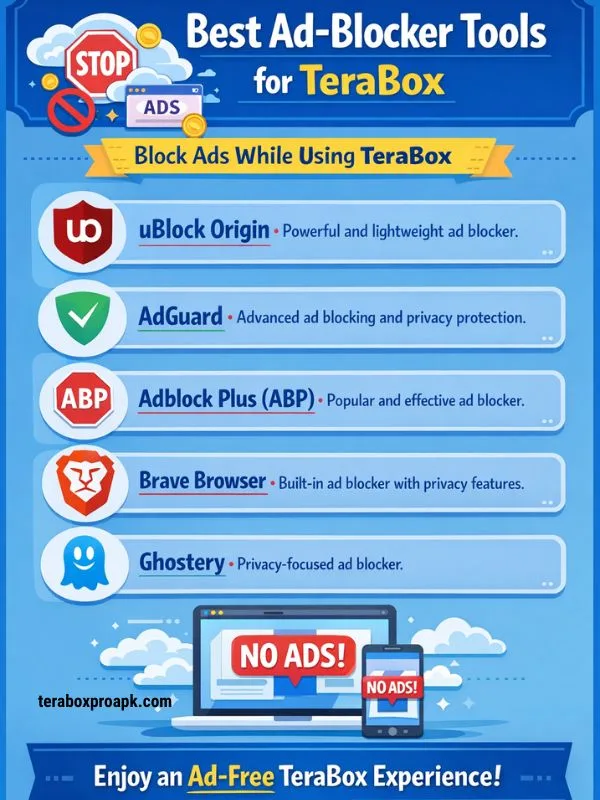
These ad-blocker tools will deliver 100% performance in desktop browsers, but you may face difficulties using them on smartphones. There are two ultimate ways to use these tools to block all kinds of ads.
Browser Extensions
You can install any of the browser extensions by searching for them on your Chrome and clicking on any of the desired results. For instance, you can tap on uBlock Origin, AdBlock Plus, or AdGuard from the Chrome Web Store or Firefox Add-ons.
Enable the extension before you access TeraBox on PC, and ensure developer mode is enabled while enabling. Now, you will see that the ad blocker has filtered banners, pop-ups, and video ads.
Mobile Limitations
If you are using TeraBox on iOS or Android, you will experience minimal performance impact from the ad blocker. To resolve this issue, you can pair with private DNS for network-level blocking, which will cut TeraBox Ads system-wide.
Alter Private DNS Settings
Modifying the DNS (Domain Name System) settings on your device is a simple way to remove ads while using TeraBox. Android smartphone users often prefer this method as it works perfectly for version 9.0 or higher.
Here is a quick way to make certain modifications to the DNS settings.
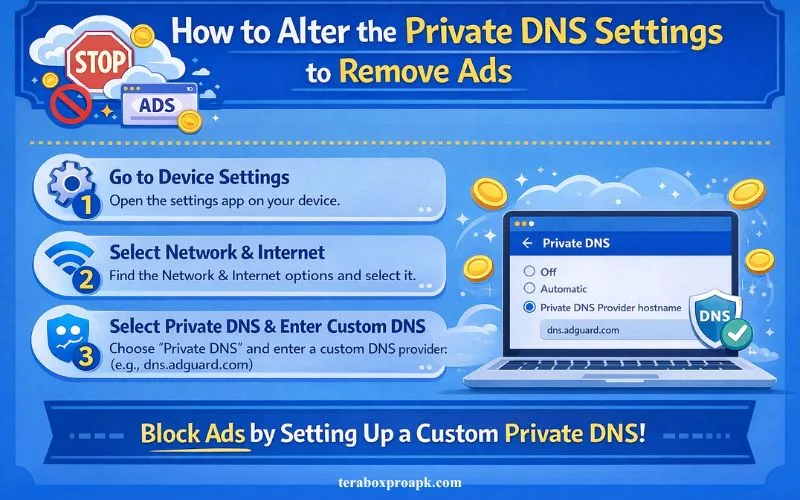
This setup directs your internet traffic via AdGuard’s DNS, effectively blocking numerous ads on your smartphone. Sometimes, the limitations come due to device incompatibility with the latest version, therefore, the better choice is to install TeraBox older versions to attain the desired results.
VPN Installation
A service called a virtual private network, or VPN, establishes an encrypted link across your device and the internet. By encrypting the data you transmit on the internet and concealing your true IP address, it serves to preserve your online privacy while also making surfing more convenient.
If you choose the VPN installation with an ad blocker, you can get a good deal that will protect your real IP address and reduce ads. Here is how you can use it:
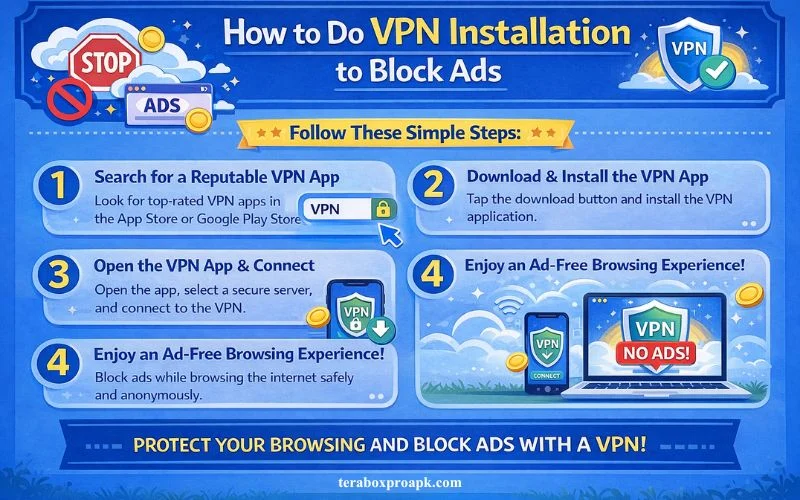
Enjoy TeraBox ad-free and fill your free storage space with powerful file organization and management features.
Disable Third Party Ads
Though TeraBox is famous for its robust features, one of its exceptional features is the limitation on ads. It means TeraBox lets you limit ads by adjusting its settings. Let’s see if you can accomplish it right now.
TeraBox Premium Subscription
If you don’t want to switch to the methods above, you can buy the TeraBox premium subscription plan. It will not only unlock premium features but also remove all ads, improving the user experience. You can take a subscription plan by following the instructions below:
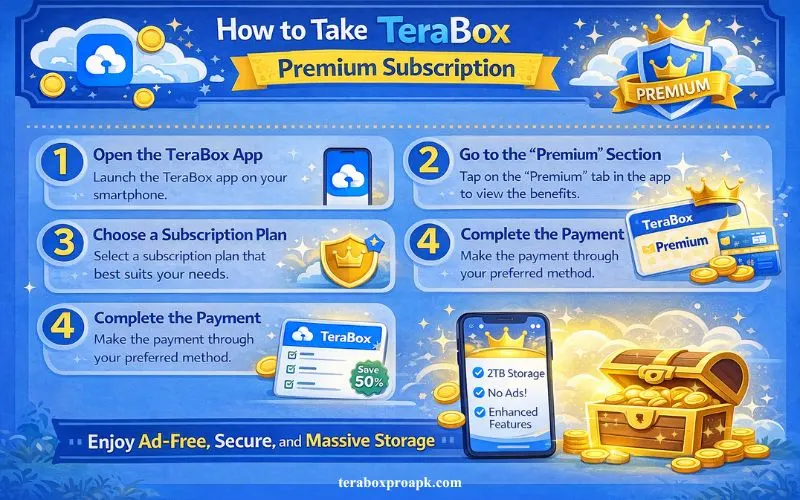
You have got the TeraBox PRO version, now say goodbye to ads, and focus on the real storage 2TB space. However, if you don’t want to get the premium plan you can choose any alternative like pcloud, TeraBox vs Google Drive gives the complete guide about choosing an appropriate choice.
TeraBox MOD Version
Using the modified version of TeraBox is the last option, but it works amazingly well, providing 2TB of free space. You will not experience any ads plus the TeraBox MOD APK offers extraordinary premium features.
You don’t have to pay to use the modified version of the app, and you must focus on reputable sources when downloading.
What People Ask | FAQs
Wrapping it Up!
You will get a sigh of relief when using TeraBox without ads and managing storage space for large files. All of the above methods are easy; choose any of them, take the necessary steps, and enjoy using TeraBox.
The real happiness is that all the above methods will permanently remove the ads; you don’t have to repeat these steps!